Razzia Quiz (Live Quiz)
A bit of game show in your meeting: with the Razzia Quiz plugin you ask questions with images, video or audio, everyone answers against the clock, a leaderboard shows the scores - and at the end there's a podium. Besides choice questions there are estimation questions where the answer is a number, and instead of a quiz with points you can also run a survey without correct answers. Participants join with one click under their BBB name; guests without BBB join on their phone via QR code or PIN.
The quiz runs on your BBB installation's own quiz server (based on the open-source project Razzia). Nobody needs an account, and no data goes to external quiz services.
The plugin and the quiz follow the language of your BBB client (German or English); this guide quotes the English labels. The screenshots show BigBlueButton 4.0.
BBB's polls come with a quiz feature of their own: a single question with a correct answer, asked in no time. Razzia Quiz is the tool for full quiz rounds with many questions, media, time limits, points and a leaderboard.
Who can do what?
| Action | Participant | Moderator | Guest without BBB (phone) |
|---|---|---|---|
| Create, edit, import, export quizzes and surveys | ❌ | ✅ | ❌ |
| Start, run and lock a quiz | ❌ | ✅ | ❌ |
| Play | ✅ | ✅ (not in their own quiz) | ✅ (with PIN, as long as the game isn't locked) |
| See top 3 and own result | ✅ | ✅ | ✅ (in the game) |
| See full standings, download results as CSV | ❌ | ✅ | ❌ |
Unlike some other plugins, the presenter role grants no quiz rights - only moderators can manage and start quizzes.
Anyone who plays through BBB appears with their BBB display name in the lobby, on the leaderboard and on the podium - visible to everyone. Moderators also see the full standings and can download everyone's answers as a CSV file. Playing is voluntary; say so briefly before you start. Anyone who'd rather not show up by name can simply watch. Alternatively, switch on Generate nicknames in the lobby: everyone then picks a random nickname, and no real names appear in the lobby or on the leaderboard.
Preparing a quiz (moderators)
- Open the Apps Gallery in the left bar and choose Quiz there. The pin icon next to it keeps the quiz in the bar permanently.
- In the Quiz panel, click Open quiz manager
- The Quiz manager opens in the main area - you're signed in automatically through BBB, there is no password
- The manager has three tabs (Razzia spells "quiz" with a double z): Play (pick and start a quiz), Quizz (create and manage quizzes) and Results (past games)
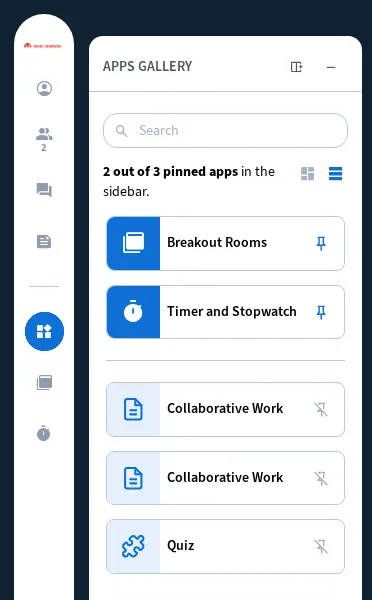
Close quiz manager (top right) folds the manager away again. On BBB 3.0 you find the quiz in the blue "+" button (Actions) under Quiz instead.
Creating a quiz
Quizz tab → Create Quizz. In the editor, enter the quiz title at the top and choose Quiz (with correct answers and points) or Survey next to it (see Surveys). Add questions on the left with Add question.
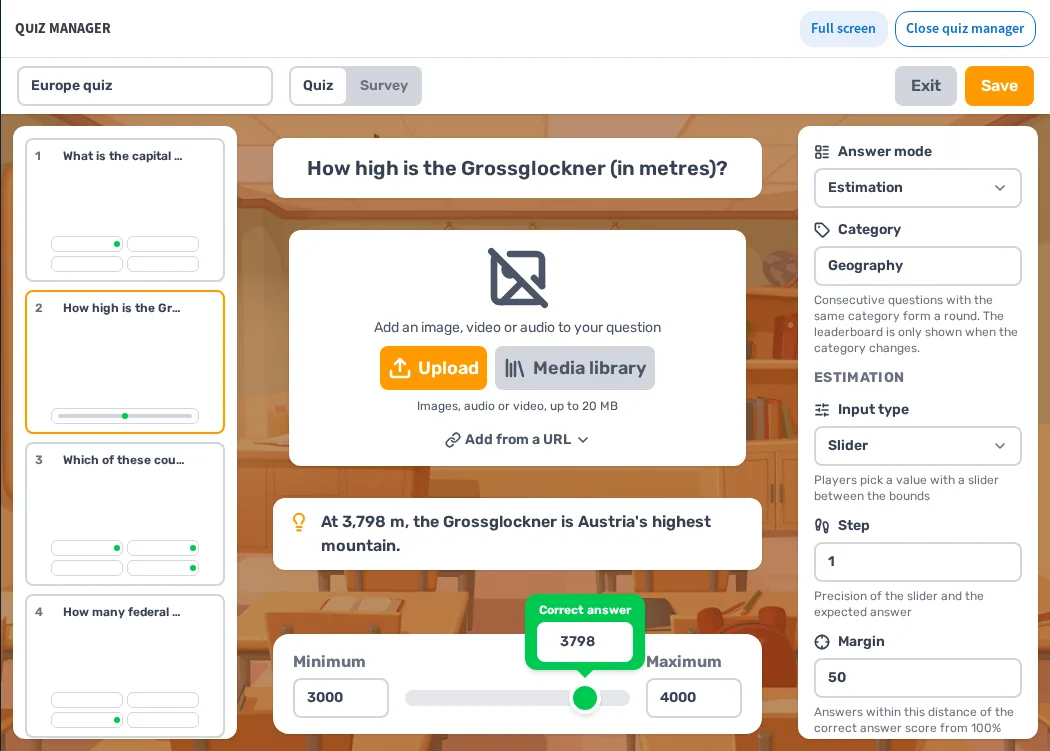
For each question you set the Answer mode on the right:
- Single choice - 2 to 4 answers, players pick one. Mark the correct answer with the circle on the right of it.
- Multiple choice - players can pick several answers. The scoring mode decides how answers count:
- Strict - points only if all correct and no wrong answers are picked
- Balanced - partial points: correct picks minus wrong ones
- Lenient - points per correct answer, wrong ones cost nothing
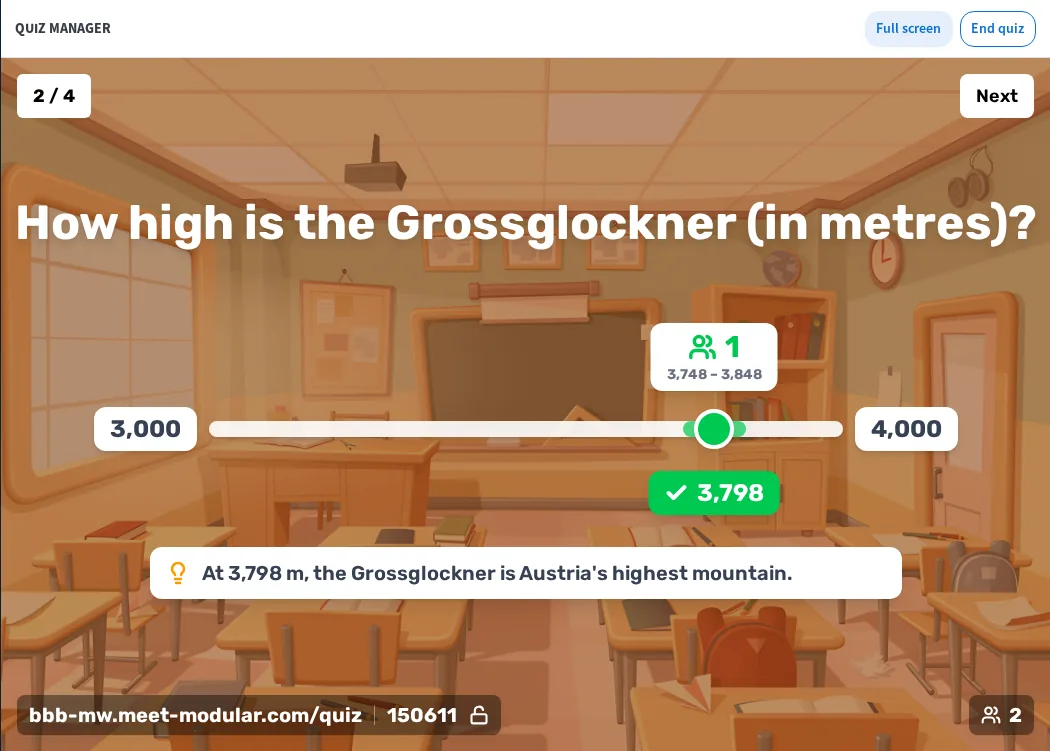
- Estimation - the answer is a number. You set Minimum, Maximum and the Correct answer, plus the Input type (Slider or Free input), the Step and the Margin. Answers within the margin score 100% (exact) down to 50% of the points, answers outside score nothing.
Every question also has:
- Category (e.g. "Geography") - consecutive questions with the same category form a round. The leaderboard then only shows when the category changes instead of after every question.
- Explanation (light-bulb field below the media) - shown when the correct answer is revealed, e.g. as background information.
- Max points for a correct answer (default 1000) and an optional penalty for wrong answers (default 100; the score never drops below 0)
- Question display: how long the question shows on its own before the answers appear (3 to 15 seconds, default 5)
- Answer time (default 20 seconds); switch off the toggle next to it for No time limit
Faster correct answers earn more points: the points drop evenly from max points to 0 over the answer time. Without a time limit, the order of the answers counts instead.
Save stores the quiz and takes you back to the overview. Exit leaves the editor without asking - unsaved changes are lost. If a question still has errors (e.g. no correct answer), the editor marks it and refuses to save.
Images, video and audio
Every question can get a media file. There are three ways:
- Upload - a file from your computer. PNG, JPEG, WebP, GIF, MP4, WebM, MP3, OGG and WAV are allowed; the maximum file size is shown below the buttons (20 MB by default).
- Media library - all images, videos and sounds already uploaded in this room. Use puts a file into the question. You can search the library, filter it by type and show it as a grid or list; Upload or drag and drop adds new files.
- Add from a URL - the address of a file on the internet. The quiz server downloads it and keeps its own copy ("Copying to the quiz server…"). This only works with public http(s) addresses on the standard port.

Uploaded files belong to the room: upload them once and use them in every quiz of the room. They stay until a moderator deletes them in the media library with the trash icon. Careful: a deleted file also disappears from every quiz that uses it. Delete below the image in a question, on the other hand, only removes the media from that question.
Why a copy instead of a link? Privacy: participants' browsers load nothing from third-party websites during the quiz. Only use images, videos and sounds you're allowed to use - and preferably none that show recognizable people.
Quizzes per room, templates, export and import

- Quizzes belong to the room: they stay for the next sessions in the same room and never show up in other rooms. All moderators of the room see and edit the same quizzes and the same media library (up to 200 quizzes per room).
- Templates: quizzes marked Template are provided by the operator for all rooms. You can edit them - saving creates a copy in your room, while the template itself stays unchanged and can't be deleted.
- Edit (pencil icon) opens the quiz in the editor.
- Export (download icon, Export quizz): a quiz with uploaded media comes as a .zip including the files, one without uploaded media as a .json. Use it to take a quiz to another room or to keep a backup.
- Import (upload icon next to Create Quizz, Import quizz): .json or .zip files up to 100 MB. Quiz files from other quiz platforms in JSON format can be imported too: choice, true/false and poll questions come over without their images and videos, other question types are left out. A notice shows how many questions were imported. Only import quizzes you're allowed to use.
- Delete (trash icon) asks once and is final.
Running a quiz (moderators)
- Play tab → tick a quiz → Start game
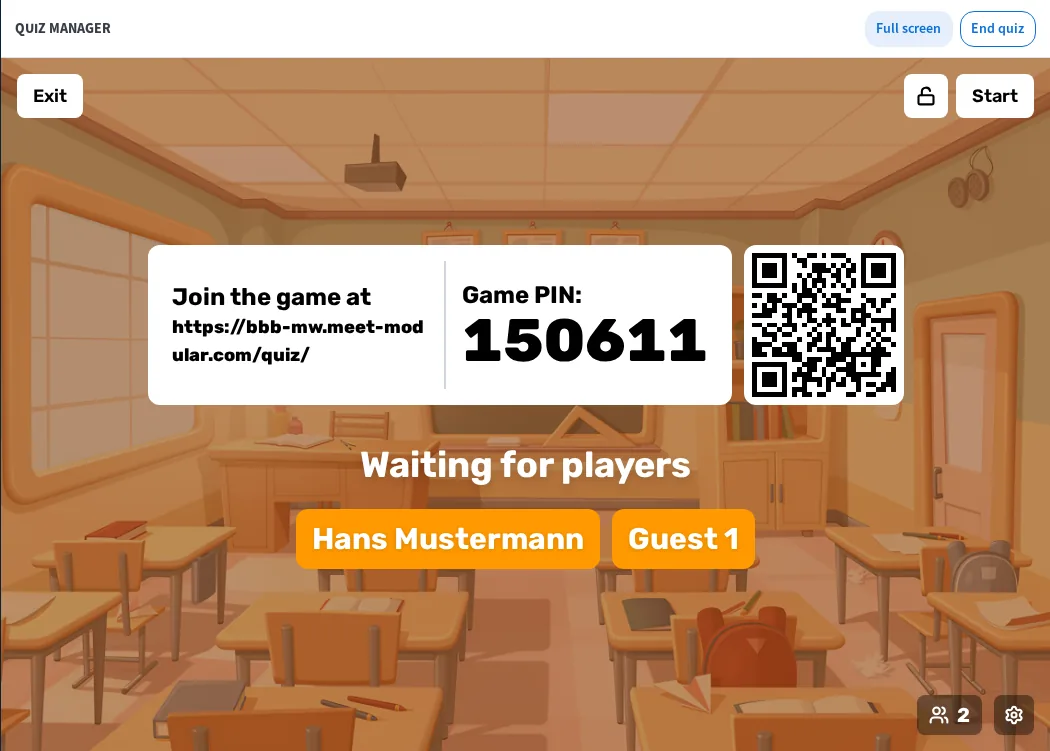
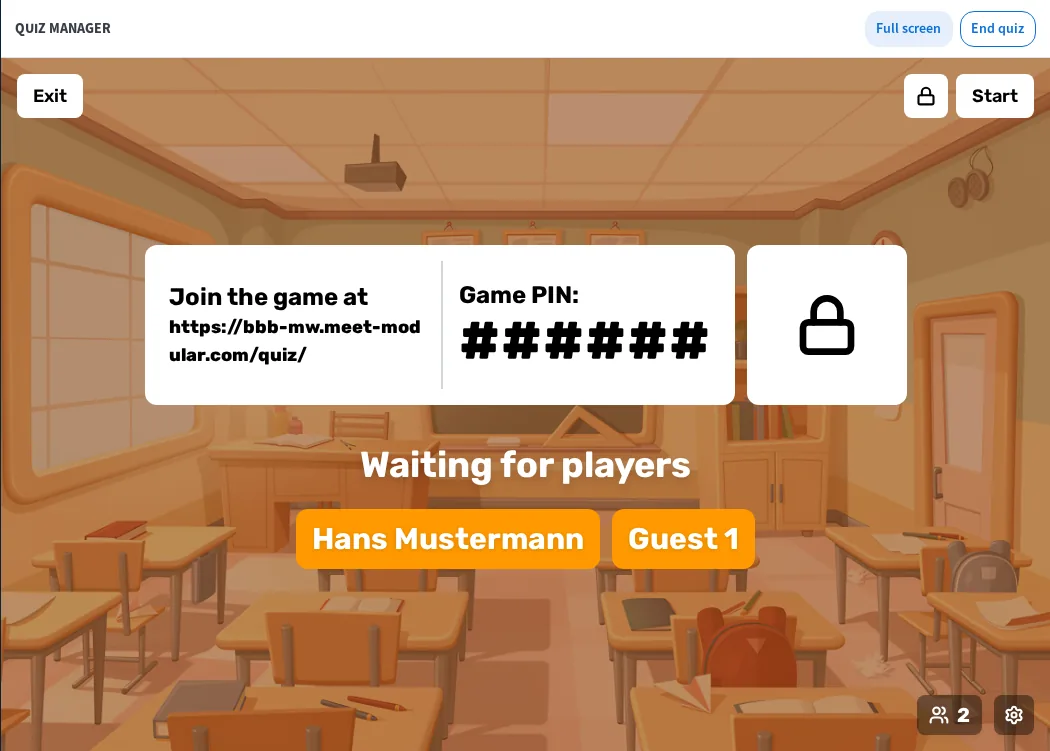
- The lobby shows the quiz address, the PIN and a QR code. Everyone in the meeting gets a notification and sees the quiz area with a Play button; whoever joins shows up in the lobby, and the number of players appears at the bottom right
- Optional: Game settings (gear at the bottom right) and Lock the room (padlock at the top right), see below
- Once everyone is in: Start (top right)
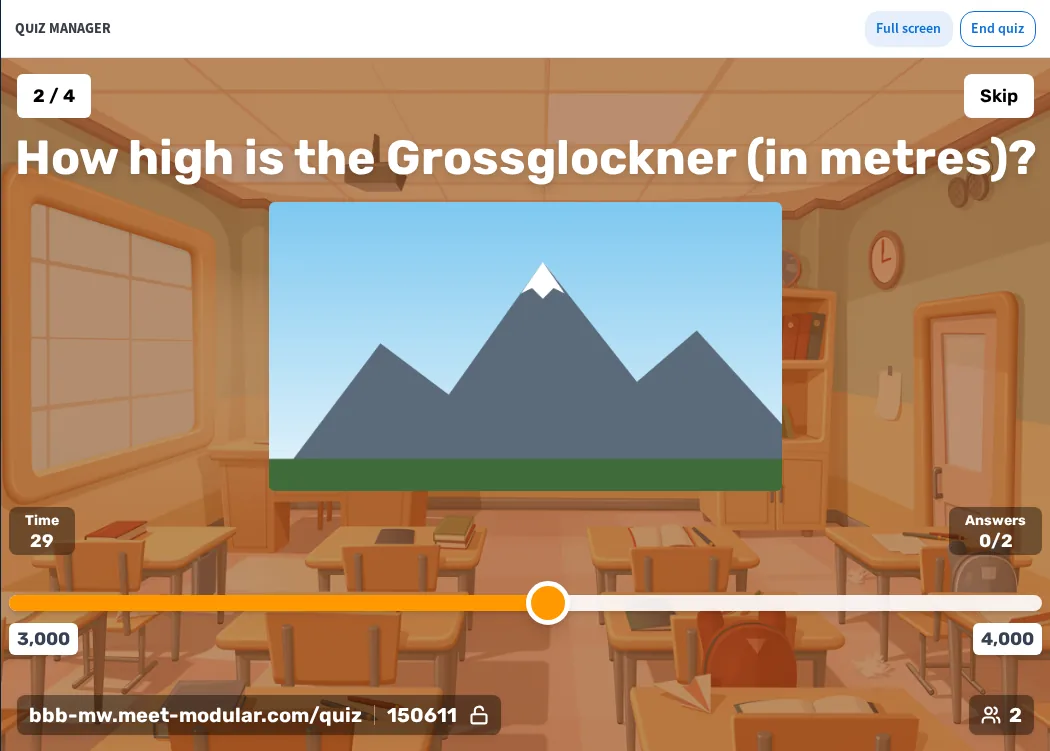
- Every question runs the same way: first the question on its own, then the answers with a countdown. Skip ends the answer time early. Then you see how people answered, together with the correct answer and the explanation if there is one. Next shows the leaderboard (with categories only at the end of a round), another Next the next question
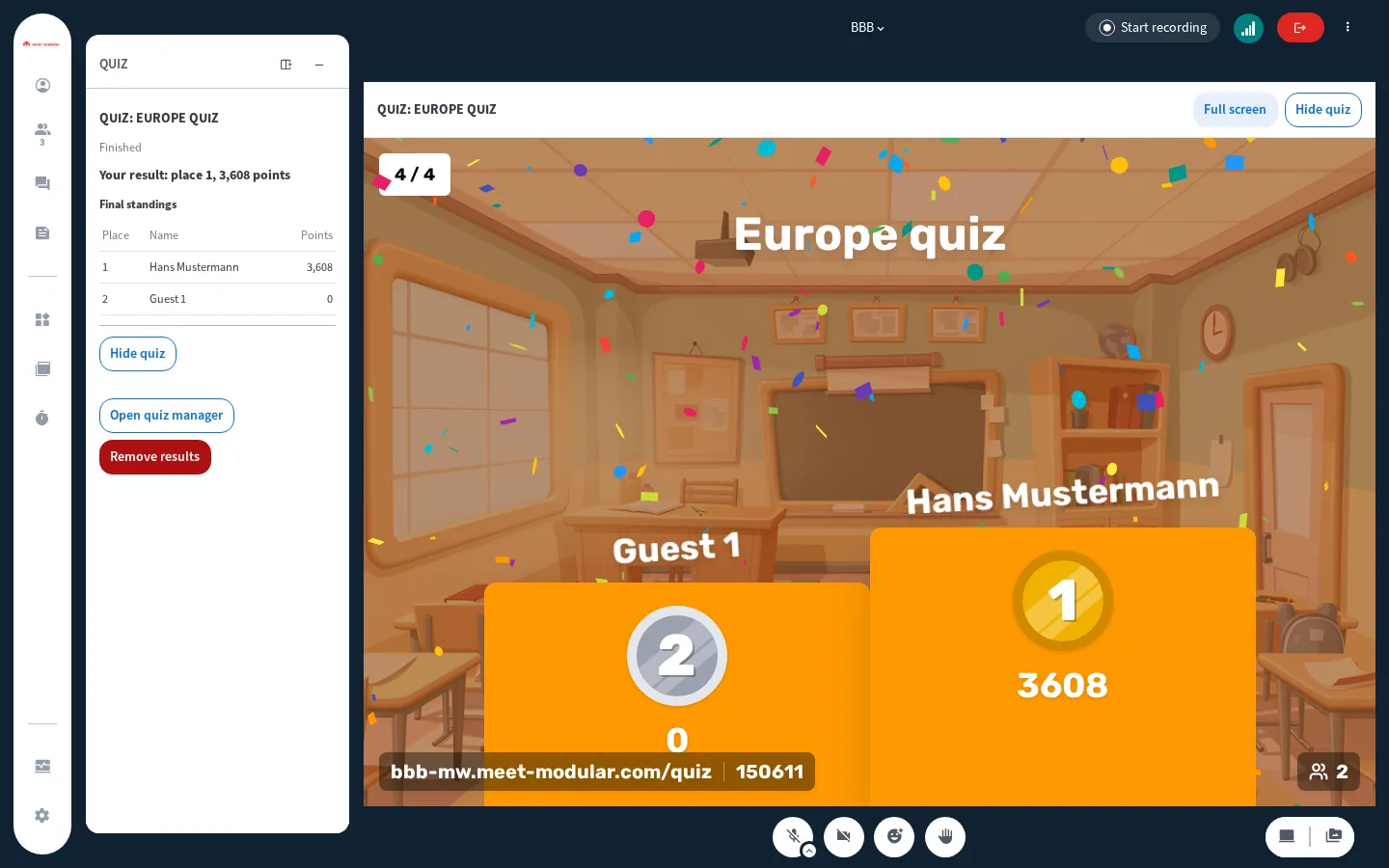
- After the last question comes the podium
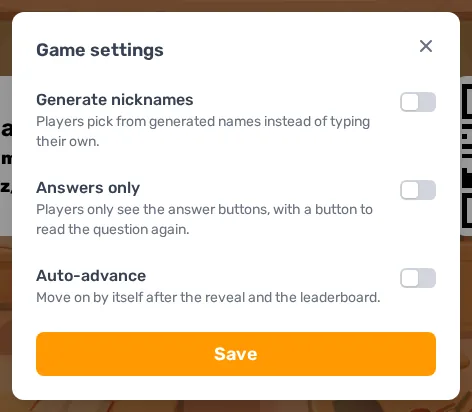
Game settings (gear in the lobby):
- Generate nicknames - players pick from generated names instead of typing their own. Players joining through BBB get a random nickname too.
- Answers only - players' devices show only the answer buttons and a Show the question button. Handy when everyone sees the question in the quiz area anyway and answers on their phone.
- Auto-advance - the game moves on by itself after the reveal and the leaderboard. Set below how long Result and Leaderboard stay on screen.
Lock the room (padlock icon): while the game is locked, no new players from outside the meeting can join. The lobby then shows a padlock instead of the PIN and QR code. Participants in the meeting can still join with Play. Unlock the room lifts the lock again.
During the game, the quiz manager keeps showing the address and PIN at the bottom left and the number of players at the bottom right.
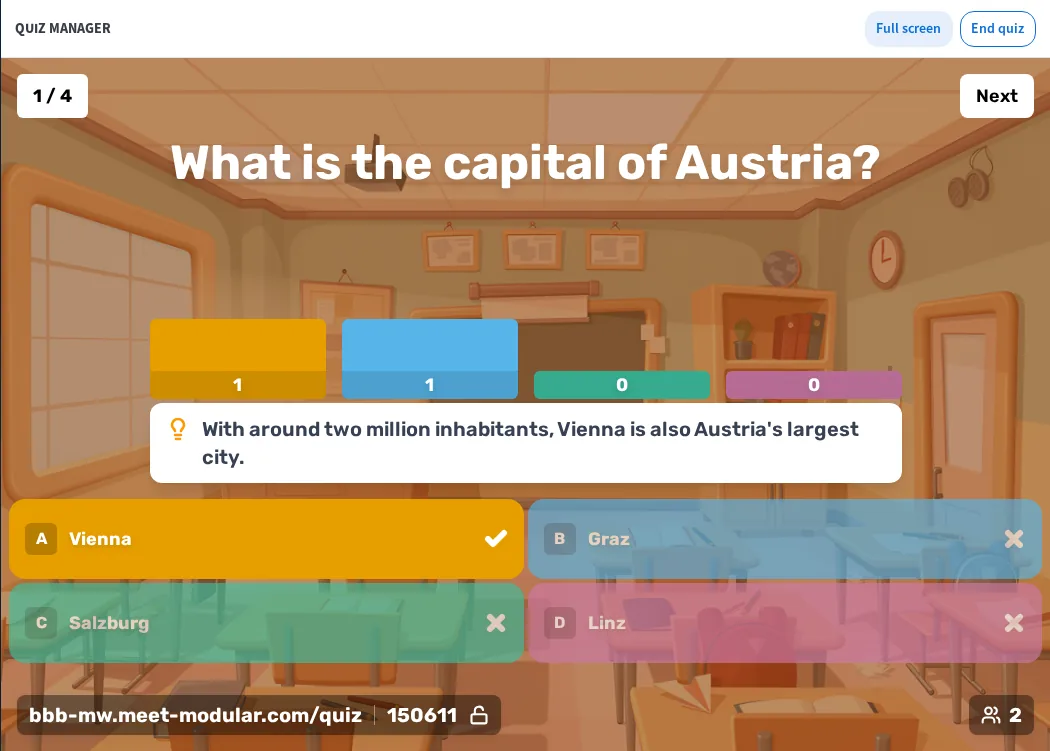
For estimation questions, the reveal shows the correct number, the margin and how many players were within it.
On the leaderboard, a flame marks everyone who answered at least two questions in a row correctly (answer streak). It earns no extra points.
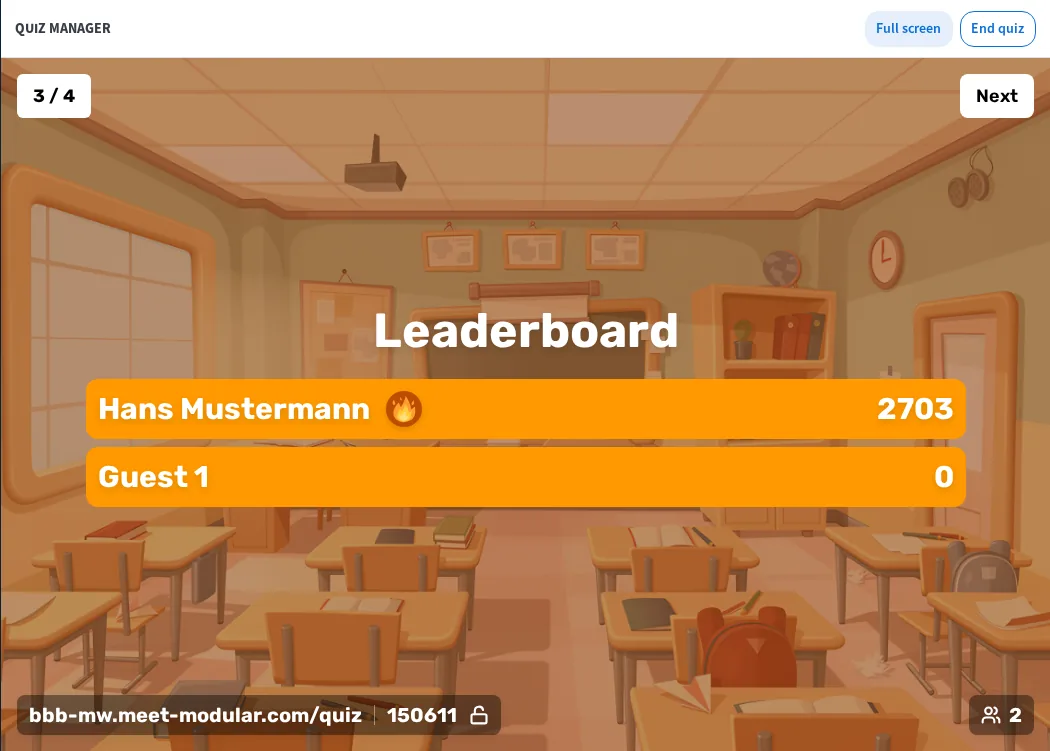
End quiz (top right in the quiz manager) stops the quiz for everyone at any time, after a confirmation ("End quiz for everyone"). Once the quiz is over, Close quiz manager closes the quiz area.

The quiz runs through your browser tab. If you close the tab, leave the meeting, or lose your connection for more than 30 seconds, the quiz ends for everyone. So don't switch rooms during the quiz, and make sure your connection is stable. If you open the quiz manager of a running quiz in a second tab, that tab takes the game over and the first one leaves it.
- One quiz per meeting: while a quiz is running, other moderators can edit quizzes but not start one ("Your quiz was not started because another quiz is running …"). If the person who started the quiz leaves the meeting, the other moderators get a Remove quiz button in the sidebar.
- Full screen (at the top of the quiz manager and the quiz area) shows the quiz on the whole screen, Esc ends it. BBB's chat and notifications are hidden in full screen. On BBB 3.0, webcams also move under the sidebar while the quiz fills the main area.
Surveys
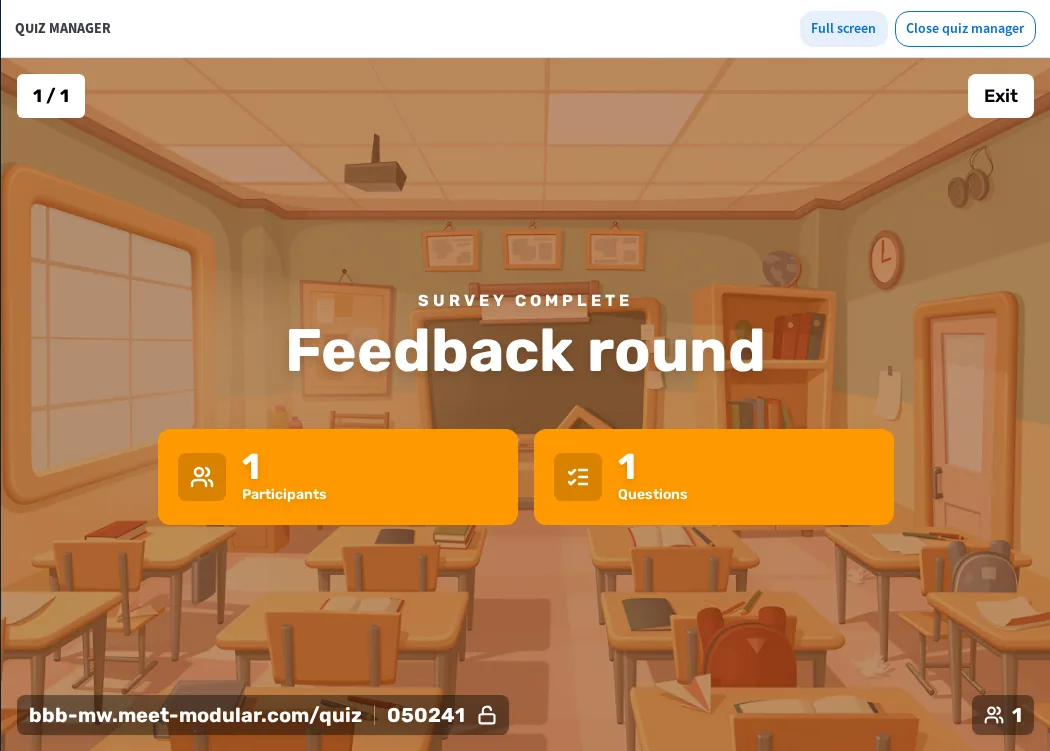
You create a survey just like a quiz, with the Survey toggle in the editor. There are no correct answers, points or leaderboard: players see "Thanks, that's noted" after answering, the reveal only shows how people answered, and at the end Survey complete shows the number of participants and questions. Good for a mood check or a feedback round at the end of the session.
Playing (participants)
When a quiz starts, you get the notification "A quiz is open: …", and the quiz area appears in the main area. It shows live what the moderator shows - from the lobby to the podium. The Apps Gallery also gets an entry Quiz (puzzle icon) with the same card.
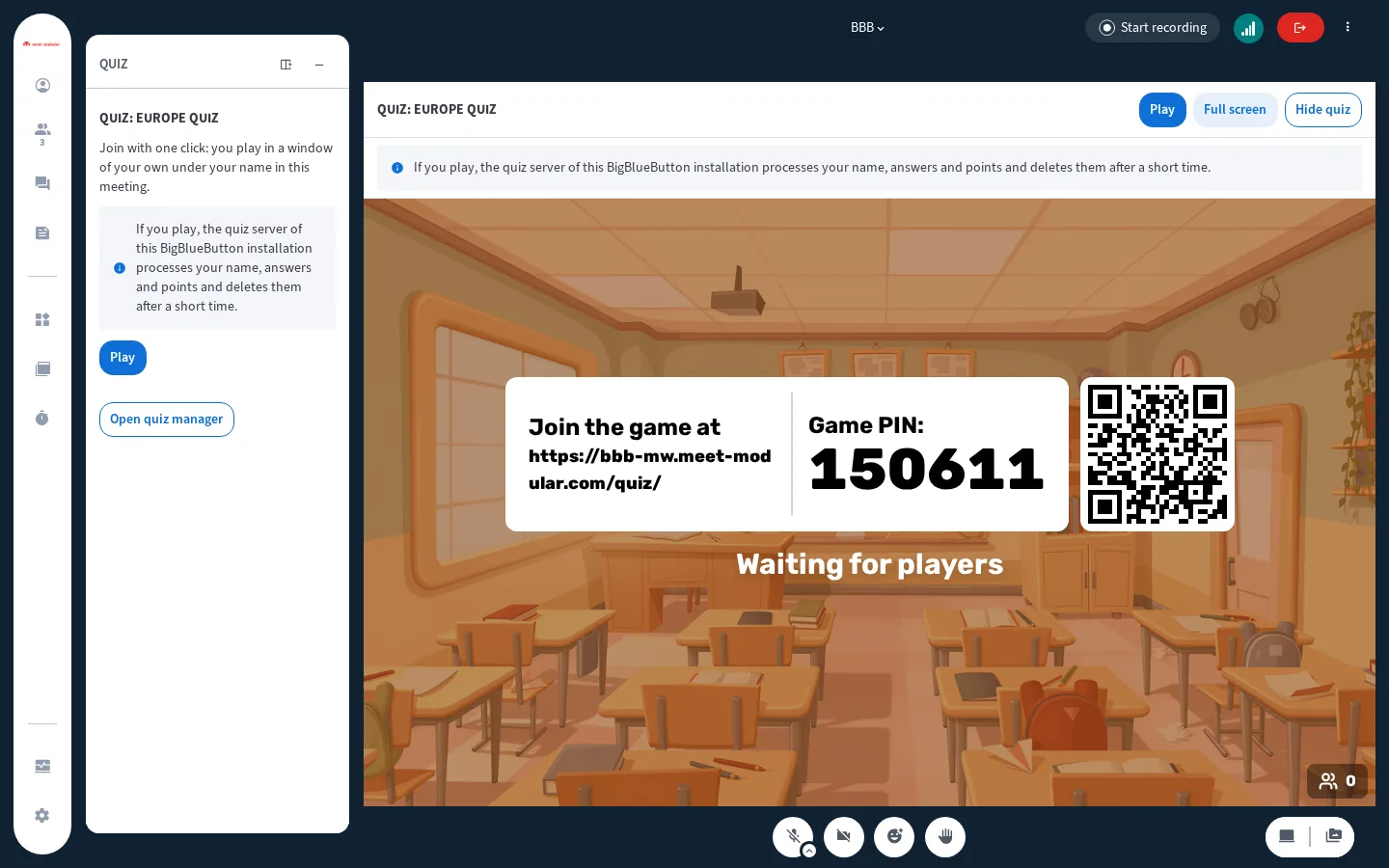
- Read the privacy notice (depending on the server, with a link to the Privacy policy)
- Click Play
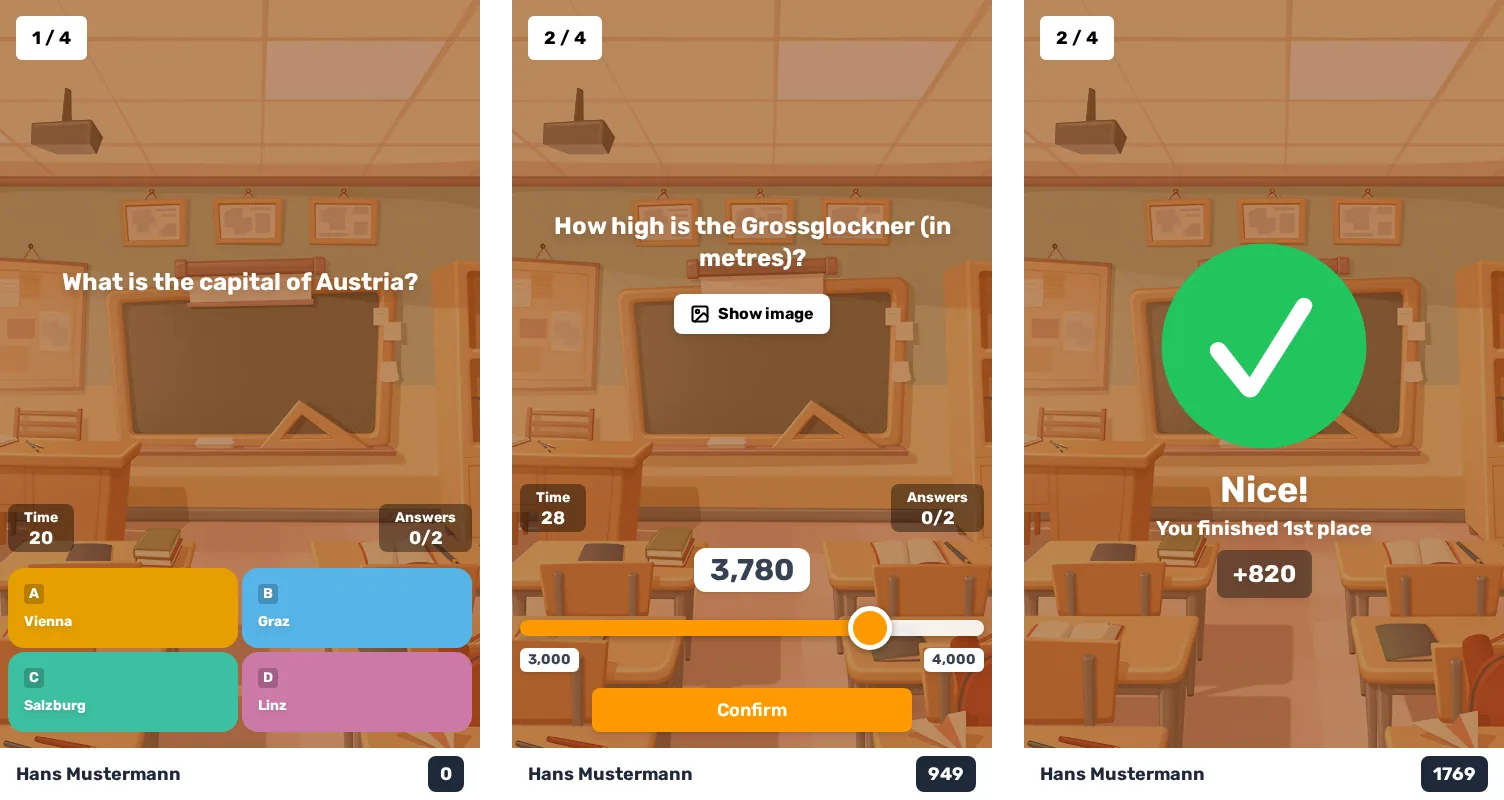
- The game opens in a window of its own (a new tab on phones and tablets); you're in automatically under your BBB name, or with a random nickname if the moderator switched on Generate nicknames
- The game window shows the question and countdown, and you answer: with an answer button for choice questions, or with the slider or as a number plus Confirm for estimation questions. Show image or Show video opens a question's media. Afterwards the window tells you whether you were right and how many points you got
Good to know:
- Allow pop-ups: if the browser blocks the game window, you'll see "Your browser blocked the game window …". Allow pop-ups for the BBB site and click Play again.
- Open game window brings the window back if it got lost behind BBB. Opening the game window in a second tab moves the game to that tab.
- Answers only: if the moderator chose this setting, the game window shows only the answer buttons; Show the question lets you read the question again.
- Sound: the game window is silent; music and effects come from the quiz area in the BBB tab.
- Hide quiz hides the quiz area at any time. Bring it back from the Quiz panel: with Show quiz, or with Play if you haven't joined yet.
- Joining late works too: "The quiz is already running. You can still join."
- Reloading is no problem - you're back in the game afterwards.
Playing without BBB (phone, guests)
Anyone who isn't in the meeting, or would rather play on their phone, scans the QR code in the lobby or opens the quiz address shown there, enters the PIN and picks a name (or one of the suggested nicknames). These guests show up in the lobby and on the leaderboard as usual, but their result isn't linked to anyone in the meeting. Once the game is locked, guests can't get in any more.
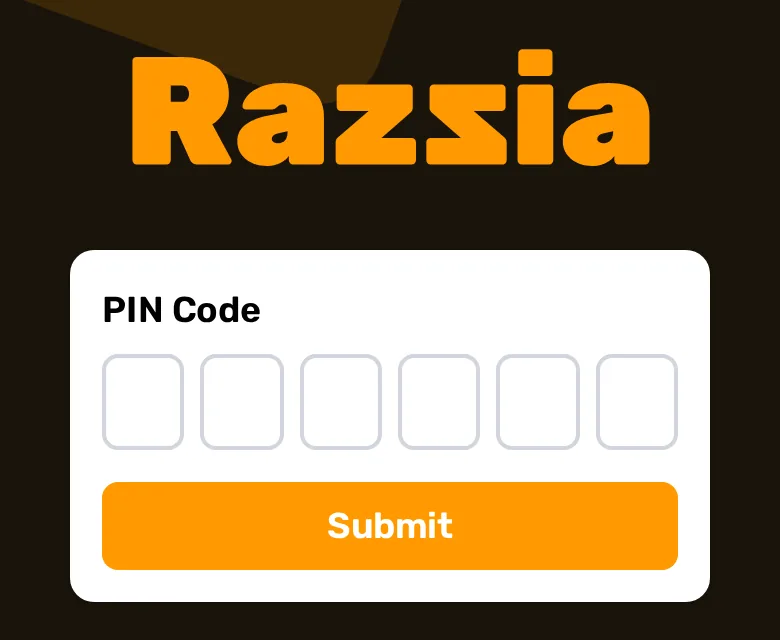
Anyone with the PIN can play until the moderator locks the game. So only show the PIN in the meeting, don't post it publicly, and lock the game once everyone is in. After too many wrong PINs from the same network, the server accepts no PINs from outside the meeting for 10 minutes ("Too many wrong PINs from your network …").
Results
In the Quiz panel (entry Quiz, puzzle icon) the results stay after the quiz:
- Participants see the top 3 and "Your result: place …, … points"
- Moderators see the full standings and a Remove results button
- Further quizzes in the same meeting collect below under Earlier quizzes
- A survey only shows as finished there, without standings
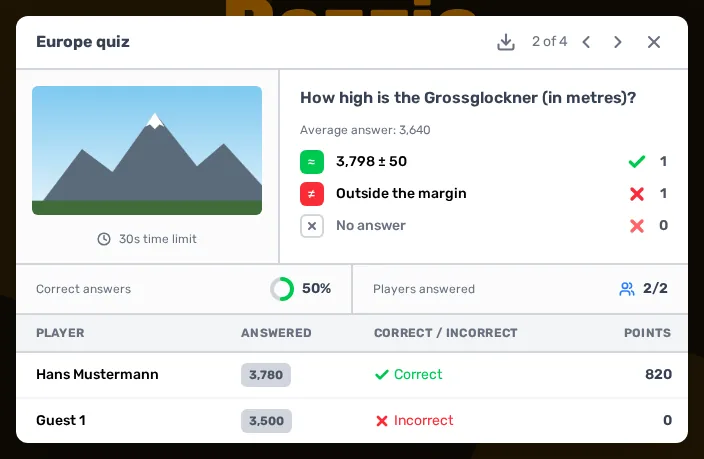
In the quiz manager, the Results tab lists the games of this meeting with date, time and number of players. Clicking a game opens its breakdown: per question (page through with the arrows) how the answers were distributed and what each person answered, for estimation questions also the average answer. The download icon at the top of the window (Download results (CSV)) saves the standings and answers as a table with one row per person that opens directly in Excel or LibreOffice. The trash icon in the list deletes a result early. Only moderators of the same meeting see these results, and the server deletes them after 24 hours.
In the Learning Analytics Dashboard, each quiz gets its own column "Title (hh:mm)" on the Quiz card with points and rank of everyone from BBB, for surveys "took part". This also works when the game was played with nicknames. Guests without BBB are grouped in the column "… : players without BBB" in the moderator's row.
Depending on how your server is set up, the plugin also posts a quiz's top 3 to the public chat (not for surveys) and writes the final standings to the recording.
What remains after the meeting?
Whoever plays gives the quiz server their name (or nickname), answers, points and rank - processed only for the quiz, never passed on to third parties. Afterwards:
- Quizzes and media stay in the room for the next session until a moderator deletes them.
- Results in the Quiz panel disappear when the meeting ends (or earlier via Remove results).
- Results on the quiz server (Results tab) are deleted after 24 hours.
- Learning Analytics Dashboard: kept as long as the rest of the meeting data.
- CSV downloads are your responsibility - they contain names and answers. Store them carefully and delete them once you no longer need them.
Limitations
- One quiz per meeting at a time
- Question types: single choice and multiple choice with 2 to 4 answers, plus estimation - no free-text or ordering questions
- Whoever starts the quiz can't play along
- The quiz manager has to stay open; after 30 seconds without a connection the quiz ends
- Anyone with the PIN can join until the game is locked
- Up to 200 quizzes per room, imports up to 100 MB
- If the quiz server restarts (for maintenance, say), running games end
- Accessibility: the quiz interface doesn't fully meet WCAG 2.2 AA. People using a screen reader or only a keyboard may struggle to keep up. Plan an alternative for them, such as reading the questions aloud and collecting answers in the chat or with a BBB poll.
- Set it up in the room beforehand and play it through once - ideally with a second device as a guest via QR code.
- Mention pop-ups: ask participants to allow pop-ups for BBB before you start. That saves most of the questions.
- Lock the game once everyone is in the lobby - then nobody gets in with a PIN that was passed on.
- Short and snappy: 5 to 10 questions with 20 seconds of answer time keep the tension up. For longer quizzes, group questions into rounds with a category so the leaderboard interrupts less often.
- Use explanations: one sentence of background at the reveal turns the quiz into a learning unit.
- Take the time pressure out when it's about learning or not everyone reads at the same speed: set a longer answer time or No time limit.
- Switch on Generate nicknames if nobody should appear on the leaderboard with their real name.
- Feedback as a survey: a short survey at the end replaces the feedback form.
- A second moderator plays along: whoever starts the quiz can't play - a second moderator can.
- Keep the results: download the CSV in the Results tab while you need it - after 24 hours it's gone from the server.
- Export quizzes as a backup or to give them to colleagues for other rooms.