Collabora Office (shared documents)
With the Collabora Office plugin you work on real office documents together during the meeting: Word, Excel or PowerPoint - right in the browser, everyone at the same time, with visible cursors just like Google Docs. Moderators create documents (or upload existing ones); all participants can open and edit them.
You'll find the plugin in the Apps Gallery in the left bar under the entry Collaborative Work (on BBB 3.0 directly in the left sidebar). The pin icon in the Apps Gallery keeps it there permanently.
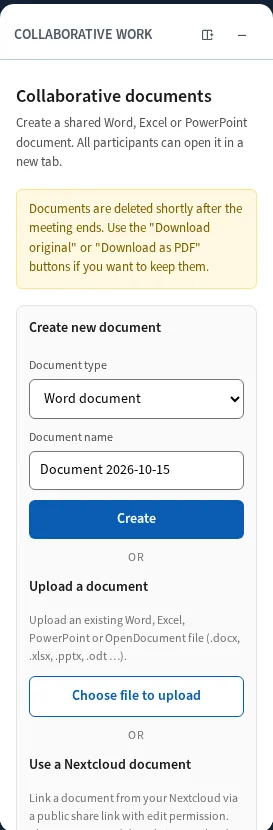
Documents are automatically deleted shortly after the meeting ends (except documents from Nextcloud). Use Download original or Download as PDF if you want to keep them.
Who can do what?
| Action | Moderator | Participants |
|---|---|---|
| See the document list, open documents | ✅ | ✅ |
| Edit documents | ✅ | ✅ |
| Download original / PDF | ✅ | ✅ |
| Create / upload documents / add from Nextcloud | ✅ | ❌ |
| "Show to everyone" | ✅ | ❌ |
| Delete | ✅ | ❌ |
Important: all participants can edit all documents - there is no read-only mode per document. The presenter role doesn't matter here; only moderator vs. not.
Creating a document (moderators)
- Open Apps Gallery → Collaborative Work
- Under Create new document, pick the document type: Word document (.docx), Excel spreadsheet (.xlsx) or PowerPoint presentation (.pptx)
- Optionally enter a name (otherwise something like "Document 2026-08-31" is suggested). Careful: renaming is not possible later!
- Click Create
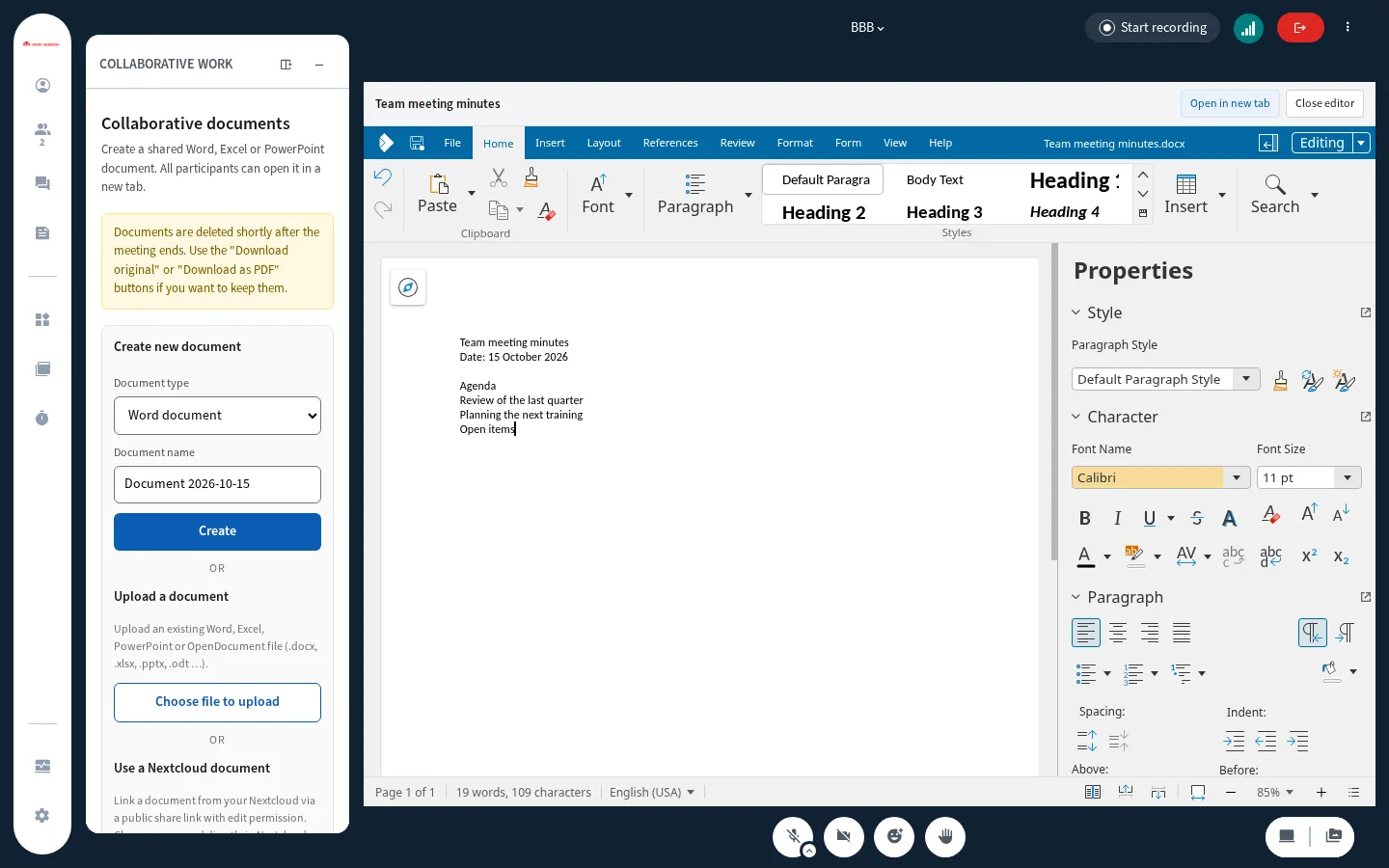
The document immediately opens for you embedded in BBB (the presentation is minimized for it) and appears for everyone under Available documents.
Uploading an existing file
Under Upload a document you can upload an existing file: Word, Excel, PowerPoint and OpenDocument formats (.docx, .xlsx, .pptx, .odt, .ods, .odp, plus the legacy .doc/.xls/.ppt). The file name becomes the document name - if you want a different name, rename the file first. Default limit: 50 MB per file; depending on server configuration a virus scan runs as well.
Adding a document from Nextcloud
If the document lives in your Nextcloud, you can have it edited right there instead of uploading a copy:
- In Nextcloud, create a public share link for the single file and switch on Allow editing (folder shares don't work)
- In the panel under Use a Nextcloud document, click Use Nextcloud document
- Paste the link into Nextcloud share link (format
https://…/s/…), and for a protected link also the Share password - Click Add document

The document appears in the list marked "stored in Nextcloud" and works like any other: Open in BBB, Show to everyone and downloads work the same way. The difference: all changes go straight into the Nextcloud file - there is no copy, and the document is not deleted after the meeting. Delete in the panel only removes it from the meeting; the file and the share in Nextcloud stay untouched.
Good to know:
- If the link has no edit permission, the document still opens, but saving fails.
- If someone edits the same file in Nextcloud at the same time, Collabora reports on saving that the document has changed and asks instead of overwriting anything. Best edit the file only through BBB during the meeting.
- In Nextcloud's version history the changes show up under the share link, not under the names of the BBB participants.
- Typical messages: "The share link could not be found …" (link removed or expired), "This share link is password protected …", "The link points to a folder …", "This Nextcloud server is not allowed by the connector's configuration." (your operator only allows certain Nextcloud servers).
Opening and editing together
Every document in the list has two open options:

- Open in BBB → the document appears embedded in the main area (the BBB presentation is minimized and comes back when you click Close editor)
- Open in new tab → full screen space and the complete Collabora toolbar - more comfortable for longer work
Both paths lead to the same document instance: everyone who has the document open edits it simultaneously and sees the others' cursors and names. Saving happens automatically - there is no save button, and you don't need one. Copy & paste between the document and your clipboard works in both directions.
Newly created documents briefly show "Syncing with the document server …" for others - after a few seconds all buttons appear. Not an error, just wait a moment.
"Show to everyone" (moderators)
With Show to everyone, the document automatically opens embedded for all participants - including people who never opened the panel, and everyone who joins later. The button changes to Hide for everyone and the document gets the badge "Shown to everyone".
Good to know:
- This is not a follow mode: everyone sees the same document, but each person scrolls and types independently.
- The embedded document does not appear in the recording. If it should be visible in the recording: share your screen as well. (The plugin also shows this hint to moderators right in the panel.)
Downloading: original and PDF
Every document offers (unless disabled by your operator):
- Download original → the file in its original format
- Download as PDF → an automatically converted PDF
If you currently have the document embedded in BBB, the plugin forces a save before the download ("Saving current state …" appears briefly) - the download is then guaranteed to contain the live state of all editors. If the document is only open in a separate tab, you get the last autosave, which may be missing the very last seconds.
Deleting (moderators)
Delete → confirmation "Delete this document?" → the document disappears for everyone, and an open editor is closed.
Limits & typical messages
- Renaming is not possible - the name is fixed when the document is created.
- There are no folders or versions - just a flat list per meeting (Nextcloud documents keep their versions in Nextcloud).
- "Document limit for this meeting reached" → 50 documents already exist (default). Just delete one you no longer need (download it first!).
- "The file is too large to upload." → default limit is 50 MB.
- "Too many requests. Please wait a moment and try again." → take a breath, then it works again.
- If an editor tab stays open for a very long time (over 2 hours), the access link can expire - simply reopen the document from the panel.
- Shared minutes: create a Word document at the start of the meeting and "Show to everyone" - everybody can contribute, and at the end someone downloads it as a PDF.
- Documents that should stay: if the template lives in Nextcloud, add it via its share link - the result is then in Nextcloud after the meeting, no download needed.
- Group work in spreadsheets: create an Excel spreadsheet with one sheet per group; each group works in its own sheet in parallel.
- Remember the end of the meeting: download first, then say goodbye. The yellow notice box in the panel is there for a reason.